Best Remote Desktop Software in 2026: 14 Free and Paid Tools Compared
Updated November 23, 2026. Prices are US list prices from each vendor’s pricing page, checked this month. We are not paid by any of the companies below.
Remote desktop software lets you see and control another computer over the internet, whether that is your office PC, a parent’s laptop or a client’s server. The market changed a lot in 2025 and 2026: Microsoft retired its Remote Desktop app, AnyDesk nearly doubled its prices, and free plans got stricter about “personal use only.” This guide compares 14 tools, free and paid, so you can pick the right one without overpaying or breaking a license.
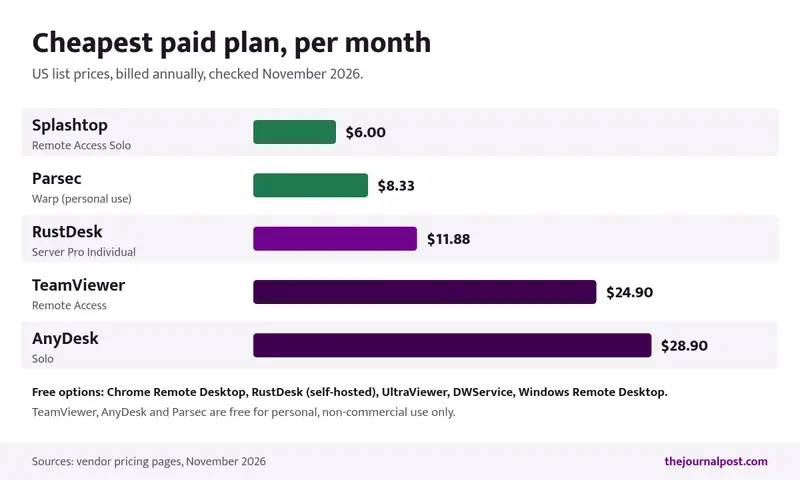
Quick answer: For free personal use, Chrome Remote Desktop is the easiest choice. For the cheapest paid access to your own computers, Splashtop starts at $6 a month. Businesses doing IT support usually pick TeamViewer or AnyDesk, but both now cost $25 to $29 a month at entry level. If you want free and self-hosted, use RustDesk; for gaming and creative work, use Parsec.
Table of Contents
What changed in remote desktop software in 2025 and 2026
- Microsoft’s Remote Desktop app is gone. The Microsoft Store app stopped being supported on May 27, 2025 and was replaced by the Windows App. The classic built-in Remote Desktop Connection tool (mstsc) still works.
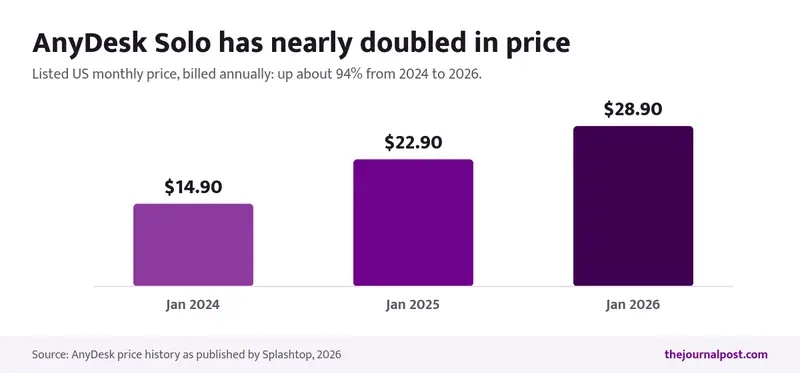
- AnyDesk prices rose sharply. The Solo plan went from $14.90 a month in January 2024 to $28.90 in January 2026, an increase of about 94%.
- Splashtop also raised prices, but modestly: Remote Access Solo went from $5 to $6 a month on March 1, 2026.
- join.me has been discontinued, with users moved to GoTo Meeting.
- “Free for personal use” is enforced. TeamViewer, AnyDesk and Parsec all limit their free plans to non-commercial use, and TeamViewer is known to flag accounts it believes are being used for work.
Best remote desktop software at a glance
| Tool | Free plan | Paid from (per month) | Platforms | Best for |
|---|---|---|---|---|
| Chrome Remote Desktop | Yes, fully free | None | Windows, Mac, Linux, Android, iOS | Simple personal access |
| Splashtop | No (trial) | $6 (Solo, yearly) | Windows, Mac, mobile | Cheapest paid access |
| RustDesk | Yes, open source | $11.88 (Server Pro, yearly) | Windows, Mac, Linux, Android, iOS | Self-hosting and privacy |
| TeamViewer | Personal use only | $24.90 (Remote Access) | All major platforms | Business IT support |
| AnyDesk | Personal use only | $28.90 (Solo, yearly) | All major platforms | Fast support sessions |
| Windows App / RDP | Yes, built in | None | Windows host (Pro), most clients | Windows-to-Windows access |
| Parsec | Personal use only | $8.33 (Warp, yearly) | Windows and Mac hosts | Gaming, video, design |
| Jump Desktop | Windows app free | One-time app purchase | Windows, Mac, iOS, Android | Mac and iPad users |
| UltraViewer | Yes | Optional | Windows | Quick free help on Windows |
| DWService | Yes | Optional (more bandwidth) | Any browser; agent on Windows, Mac, Linux | Browser-only access |
| Apple Remote Desktop | No | $79.99 one-time | Mac | Managing many Macs |
| mRemoteNG | Yes, open source | None | Windows | Admins with many connections |
| ThinLinc | Free up to 10 users | From $49/user/year | Linux servers | Linux remote desktops |
| Zoho Assist | Yes, limited | Paid plans available | All major platforms | Small support teams |
The 14 remote desktop tools compared
1. Chrome Remote Desktop: best free option for most people
Google’s Chrome Remote Desktop is completely free, with no ads or paid tiers. You sign in with a Google account, install a small host app, set a PIN, and connect from a browser or the Android and iOS apps. It works on Windows, Mac and Linux and is ideal for reaching your own computer or helping a relative. The trade-off is a basic feature set: no session recording, limited file transfer and no team management.
- Good: completely free, very easy setup, works in a browser
- Watch out: basic features, needs a Google account, no admin tools
2. Splashtop: cheapest paid remote access
Splashtop Remote Access Solo costs $6 a month billed annually ($72 a year) after a small price rise on March 1, 2026, and lets you reach a handful of your own computers with good performance. Remote Access Pro is $8.25 per user per month and adds multi-monitor support, user management, chat and session recording. For people who just need reliable access to their own PCs, it offers the best value among paid tools.
- Good: low price, good performance, clear plans
- Watch out: no free plan, Solo is limited to a few computers
3. RustDesk: best free and self-hosted option
RustDesk is open source (AGPL) and free. You can use its public servers or run your own relay so that your connections never pass through a third party, which is why privacy-minded users and IT teams like it. RustDesk Server Pro adds a web console, address book, branded clients and SSO, starting at $11.88 a month billed annually for one login user and 20 devices. Self-hosting does take some technical skill to set up and maintain.
- Good: free, open source, full control of your data
- Watch out: self-hosting takes effort, Pro is billed yearly only
4. TeamViewer: best for business IT support
TeamViewer remains the best-known name in remote support, with apps for almost every platform, unattended access, file transfer, session recording and strong security controls. It is free for personal, non-commercial use, but its system can flag accounts it thinks are used for work. The Remote Access plan starts at $24.90 a month for one licensed user, and team plans run up to $229.90 a month for Corporate.
- Good: feature-rich, very reliable, every platform
- Watch out: expensive, free use can be flagged as commercial
5. AnyDesk: fast and lightweight, but pricier now
AnyDesk is known for speed on slow connections and a small, quick-to-launch app. It is free for personal use, though free sessions may time out. Paid plans now cost much more than a few years ago: Solo is listed at $28.90 a month (billed yearly), up from $14.90 in 2024, and Standard is $49.90 a month. It is still a strong tool, but compare the total yearly cost before renewing.
- Good: fast, lightweight, good on weak connections
- Watch out: big price increases, yearly upfront billing
6. Windows App and Remote Desktop Connection: free for Windows
Windows has remote desktop built in. You can connect to another Windows PC using the classic Remote Desktop Connection tool or Microsoft’s newer Windows App, which replaced the Remote Desktop app in May 2025. The computer you connect to must run Windows Pro, Enterprise or Education; Windows Home cannot be a host. Never expose RDP directly to the internet; use a VPN or gateway instead.
- Good: free, built into Windows, high quality
- Watch out: host needs Windows Pro, risky if exposed to the internet
7. Parsec: best for gaming and creative work
Parsec streams your desktop at low latency, which makes it the favorite for remote gaming, video editing and design. The free plan covers personal, non-commercial use and hosts on Windows 10+ and macOS 10.15+. Warp costs $8.33 a month on yearly billing (or $9.99 monthly) and adds features like multi-monitor support. Business use requires Teams, from $30 per user per month.
- Good: very low latency, smooth video, free for personal use
- Watch out: free and Warp plans are non-commercial only
8. Jump Desktop: great for Mac, iPhone and iPad
Jump Desktop connects using RDP, VNC and its own Fluid protocol, and it is especially popular on Macs and iPads for its keyboard handling. The Windows app is free, while the Mac and iOS apps are one-time purchases (the iPhone and iPad app is $14.99 in the US App Store). Teams can add paid plans for management features.
- Good: one-time purchase, excellent Mac and iPad apps
- Watch out: fewer support features than TeamViewer
9. UltraViewer: simple free help on Windows
UltraViewer is a small, free tool from Vietnam’s DucFabulous that connects with an ID and password, similar to TeamViewer. It includes chat and file transfer and is popular for quick support sessions. It runs on Windows only. Because scammers sometimes ask victims to install it, only download it from the official site and never give access to someone who contacted you unexpectedly. Read our full UltraViewer review for setup details.
- Good: free, tiny download, easy for beginners
- Watch out: Windows only, basic features, often abused by scammers
10. DWService: remote access from any browser
DWService lets you control a computer from any web browser after installing its agent on the remote machine (Windows, Mac, Linux or Raspberry Pi). It includes screen control, file manager and a terminal. The agent is open source and the service is free, with an optional subscription for more bandwidth. It suits people who cannot install software on the device they connect from. See our DWService review for a closer look.
- Good: browser-only access, free, includes a terminal
- Watch out: slower on the free tier, server side is not open source
11. Apple Remote Desktop: for managing many Macs
Apple Remote Desktop is a one-time $79.99 purchase from the Mac App Store, built for managing Macs on a network: installing software, running scripts, collecting hardware reports and helping users. It is a management tool for admins rather than a way to reach your own Mac from outside. For simple personal access, macOS Screen Sharing or Chrome Remote Desktop is enough.
- Good: powerful Mac management, one-time price
- Watch out: Mac only, users say updates are rare, built for local networks
12. mRemoteNG: free connection manager for admins
mRemoteNG is a free, open-source Windows app that keeps all your RDP, SSH, VNC and other connections in one tabbed window. It does not provide remote access on its own; it organizes the connections you already have. System administrators who manage many servers use it to save time.
- Good: free, open source, many protocols in one place
- Watch out: Windows only, not a remote access service by itself
13. ThinLinc: Linux remote desktops for teams
ThinLinc from Cendio gives users remote access to centralized Linux desktops and apps. It is free for up to 10 concurrent users, with paid subscriptions above that starting at $49 per user per year. It is used mostly by universities, engineering firms and healthcare organizations running Linux servers.
- Good: free for small teams, strong Linux support
- Watch out: only for Linux server setups
14. Zoho Assist: free plan for small support teams
Zoho Assist offers a free edition for one technician with up to 5 unattended computers and one session at a time, plus paid plans for larger teams. It runs in a browser for the technician and works across major platforms, making it a low-cost starting point for small IT or support teams.
- Good: free tier for unattended access, browser-based
- Watch out: free plan is small, advanced features are paid
Which remote desktop tool should you choose?
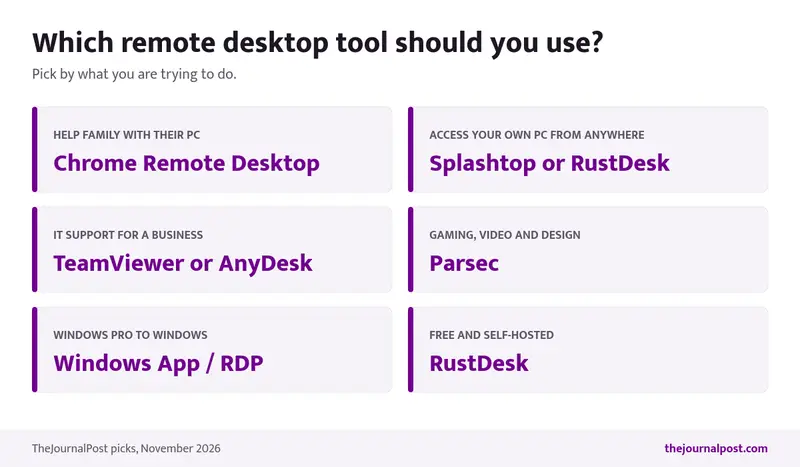
- Helping parents or friends: Chrome Remote Desktop (free) or TeamViewer’s free personal plan.
- Reaching your own work PC every day: Splashtop Solo, or Windows App if the PC runs Windows Pro on a company network with VPN.
- Supporting customers or employees: TeamViewer, AnyDesk or Splashtop Remote Support; compare yearly totals.
- Privacy or compliance needs: RustDesk self-hosted.
- Gaming, video editing or 3D work: Parsec.
- Managing servers: mRemoteNG for Windows admins, ThinLinc for Linux desktops, Apple Remote Desktop for Mac fleets.
Free vs paid: the licensing trap to avoid
Several “free” tools are free only for personal, non-commercial use. TeamViewer, AnyDesk and Parsec all require a paid license once the connection is work-related, even if it is occasional, such as accessing your office PC or supporting a client. Using a free plan for business can get your account blocked or flagged. If you need a free tool for work, choose one whose license allows it, such as Chrome Remote Desktop, RustDesk or UltraViewer, and check the current terms first.
Remote access scams: how to stay safe
Remote desktop tools are legitimate, but scammers love them. A common trick is a call, pop-up or message claiming your computer or bank account has a problem, followed by a request to install AnyDesk, TeamViewer or UltraViewer so “support” can fix it. Once connected, they can steal passwords or move money.
- Hang up on unexpected tech support calls. The US Federal Trade Commission says an unexpected tech support call is a scam, even if the number looks local or legitimate.
- Never give access to someone who contacted you first. Only allow remote access when you started the conversation with a company you trust.
- Never log in to your bank while someone else is connected to your computer.
- If you already gave access: disconnect from the internet, uninstall the remote tool, run a security scan, change passwords from another device, call your bank, and report it (in the US at ReportFraud.ftc.gov).
Security checklist for your own setup
- Turn on two-factor authentication for your remote desktop account.
- Use a long, unique password for unattended access.
- Keep the app updated on every device.
- Do not open Windows RDP (port 3389) directly to the internet; connect through a VPN or gateway.
- Review connected devices regularly and remove ones you no longer use.
What about the older tools we reviewed before?
Our earlier reviews also covered join.me, Viubo, eHorus, Alpemix, RemoteToPC, SkyFex, RemoteView and Thinfinity Remote Desktop Workstation. join.me has been discontinued. The others are niche or business-specific products, and for most readers the tools in this guide are better supported and easier to recommend. If you already use one of them, check the developer’s site for current versions and pricing.
How we compared these tools
We compared free plans, entry-level paid plans, supported platforms, licensing rules and key features using each vendor’s own pricing and documentation pages, checked in November 2026, and cross-checked recent changes such as price increases and product retirements against news coverage. Prices shown are US list prices and may differ by country or with promotions.
Frequently asked questions
Chrome Remote Desktop is the best free option for most people because it is completely free, has no ads and is very easy to set up. RustDesk is the best free choice if you want open source and self-hosting.
TeamViewer is free for personal, non-commercial use. Business use requires a paid plan, starting at $24.90 a month for the Remote Access plan.
AnyDesk Solo is listed at $28.90 a month billed annually, up from $14.90 in 2024. AnyDesk is still free for personal use, but free sessions may time out.
Splashtop Remote Access Solo is among the cheapest at $6 a month billed annually ($72 a year). Parsec Warp ($8.33 a month) is cheap too, but it is licensed for personal use only.
Microsoft replaced the Remote Desktop app from the Microsoft Store with the Windows App in May 2025. The built-in Remote Desktop Connection tool in Windows still works.
You can connect from Windows Home, but a Windows Home PC cannot be the computer you connect to using Microsoft’s Remote Desktop. Use Chrome Remote Desktop, RustDesk or another third-party tool to reach a Home PC.
Only if you know and trust them and you started the contact. Scammers often ask people to install AnyDesk, TeamViewer or UltraViewer. Hang up on unexpected tech support calls and never log in to your bank while someone is connected.
Sources
- TeamViewer and AnyDesk pricing (vendor pages and Capterra, 2026)
- Splashtop pricing and Solo price-update FAQ (March 2026)
- AnyDesk price history published by Splashtop (2026)
- RustDesk pricing page
- Parsec pricing page
- Microsoft Windows IT Pro Blog and PCWorld on the Windows App replacing Remote Desktop
- US Federal Trade Commission guidance on tech support scams
- Cendio ThinLinc licensing FAQ
- Apple Remote Desktop on the Mac App Store
- GoTo support on join.me
Prices and plans change often. Always confirm on the vendor’s official site before you buy.




3 Comments